


Add a taxonomy to a WooCommerce custom product type by enabling Custom Taxonomy in the type’s General settings. Use it for a dedicated hierarchical browsing structure, not as a replacement for product specifications, attributes, or the product type itself.
Plan the taxonomy purpose
A Course type can use Course Subjects with parent and child terms:
- Development
- WordPress
- WooCommerce
- Marketing
- SEO
- Content Marketing
The taxonomy should help customers move from a broad topic to a specific collection. It should not copy every course field or create a new archive for values that customers never browse.
Design it for real catalog navigation, not administrative convenience alone.
When a custom taxonomy is the right structure
Use the type-specific taxonomy when all three conditions are true:
- The terms apply primarily to one custom product type.
- Customers benefit from browsing those terms.
- A parent-child hierarchy makes the collection easier to understand.
For example, Course Subjects is stronger than a generic product category when the hierarchy belongs specifically to the Course model.
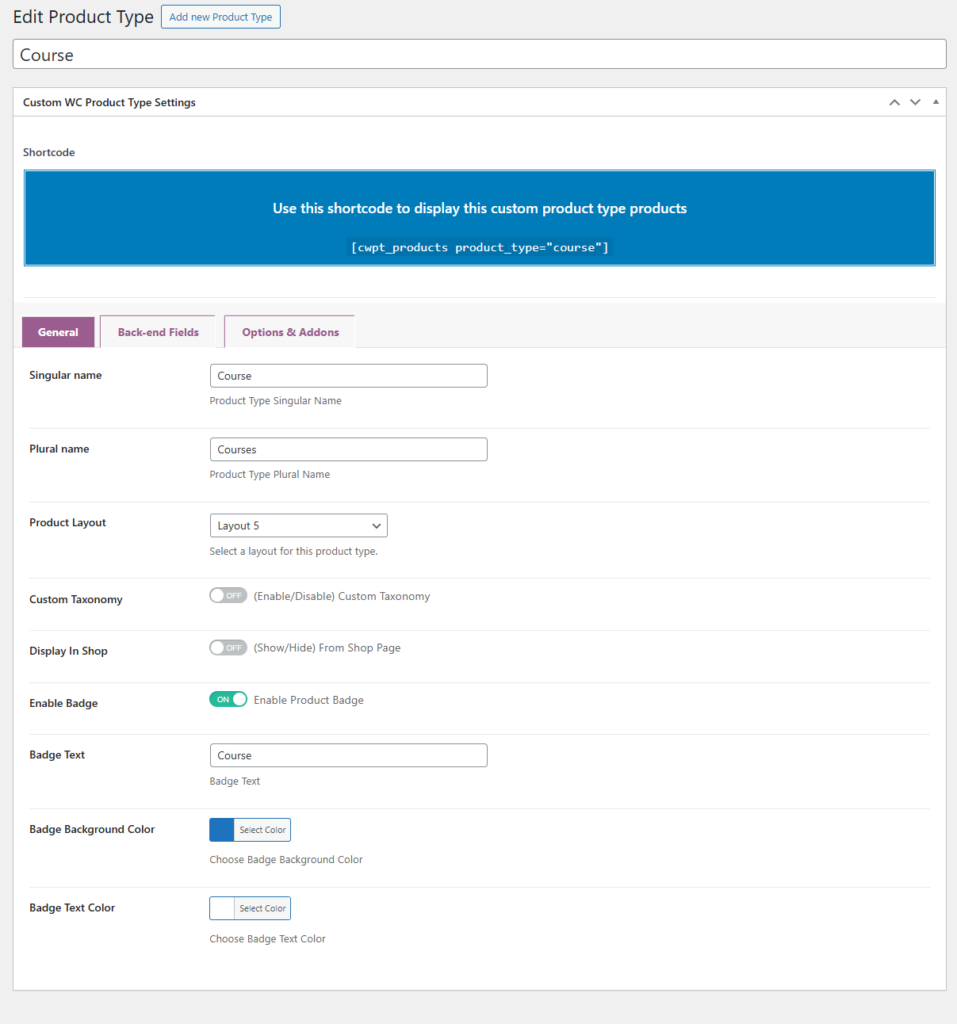
Step 1: Enable Custom Taxonomy
- Go to WooCommerce > Product Types.
- Open the Course type.
- Find Custom Taxonomy in General settings.
- Enable it.
- Save the product type.
Custom Product Type for WooCommerce registers a public hierarchical taxonomy associated with products for the type.
What the setting creates
Enabling Custom Taxonomy gives the product type a dedicated hierarchical classification. This means terms can use parent and child relationships and can organize products belonging to the model.
The taxonomy is a catalog layer. It does not replace the Course type, Course Details fields, WooCommerce attributes, or customer options.
Step 2: Design terms before adding products
Use customer language, keep parent terms broad, and avoid near-duplicates. A small intentional hierarchy is more useful than dozens of empty terms.
| Weak term plan | Improved term plan |
|---|---|
| WP, WordPress, WordPress Courses | Development > WordPress |
| SEO Basics, Basic SEO, SEO Beginner | Marketing > SEO |
| Design Course, Design Training | Design |
Choose one canonical label for each concept. Term descriptions can explain the collection, but the hierarchy itself should remain concise.
| Value | Best structure |
|---|---|
| Course subject hierarchy | Custom taxonomy |
| Instructor and duration | Product fields |
| Level used for filtering | Attribute |
| Course product model | Custom product type |
| Student note | Customer option |
Step 3: Assign terms consistently
Create one representative course, select the most specific relevant subject, and verify the resulting browsing path. Document the term rules before multiple editors add products.
Create an assignment policy
- Assign the most specific relevant child term.
- Add a parent term only when the store’s workflow requires it.
- Avoid assigning every related term to one product.
- Do not create a new term when an existing term has the same meaning.
- Review the hierarchy before bulk product creation.
A short policy prevents editors from fragmenting the taxonomy as the catalog grows.
Step 4: Connect taxonomy pages
- Link important subject pages from the course collection.
- Link related tutorials to relevant subject archives.
- Keep terms with enough products to be useful.
- Avoid creating several archives with the same search intent.
Build useful taxonomy archive content
An important subject archive should clearly name the topic, explain what customers will find, and link to the relevant products. Keep the introduction specific to the term rather than repeating the main Course collection copy.
Use contextual links from educational articles when a subject archive is the most useful next step. Link directly to an individual course when the article discusses that exact offer.
Step 5: Audit the hierarchy
Check for duplicate terms, unclear parent-child relationships, empty archives, and products assigned too broadly. The taxonomy should improve discovery rather than mirror every field value.
| Audit check | Required outcome |
|---|---|
| Duplicate meaning | One canonical term |
| Empty archive | Add relevant products or remove the unused term |
| Overlapping parent terms | Clarify the hierarchy |
| Product assigned everywhere | Keep only relevant terms |
| Field used as taxonomy | Return specifications to the product model |
Common taxonomy mistakes
- Creating a term for every product field value.
- Using attributes and taxonomy terms for the same purpose.
- Creating singular and plural duplicates.
- Publishing many archives with one product each.
- Letting editors create terms without an agreed vocabulary.
Compare product types and attributes when deciding whether a value belongs in filtering or the dedicated hierarchy.
Final taxonomy QA checklist
- Custom Taxonomy is enabled for the intended type.
- Parent and child terms follow one documented hierarchy.
- Every term has a clear browsing purpose.
- Products use the most relevant terms.
- Attributes and fields are not duplicated as taxonomy terms.
- Important archive pages have internal links.
Use the store-organization framework to prevent taxonomy and attribute duplication, then connect the terms to a focused product-type page when the family needs its own discovery path.
Frequently asked questions
Is a taxonomy the same as a product type?
No. The type defines the product model; the taxonomy organizes products for hierarchical browsing.
Should duration be a taxonomy term?
Usually no. Duration is normally a product specification unless the catalog has a genuine browsing requirement for it.
Can the taxonomy have parent and child terms?
Yes. The verified Custom Taxonomy is hierarchical.

![Best WooCommerce Product Feed Plugins to Sell on Multiple Marketplaces [2026] | WPSAAD](https://wpsaad.com/wp-content/uploads/2026/08/Product-feed-plugin-guest-post-300x300.webp "Best WooCommerce Product Feed Plugins to Sell on Multiple Marketplaces [2026] | WPSAAD")