
To hide a custom WooCommerce product type from the main shop, disable Display In Shop in that product type’s settings. Use this when specialized products have a dedicated landing page or collection path and mixing them into the general catalog weakens discovery.
When hiding the type improves the catalog
A consultation service may need persuasive service pages and a focused Services collection rather than appearing beside physical products. Hiding it from the main shop keeps the store organized without removing the product.
Decide why the type needs a separate path
Hide a type only when the new discovery path is clearer than the general shop. Strong reasons include:
- Services need explanatory copy before the product grid.
- Courses use a dedicated subject hierarchy.
- Rentals require terms and preparation information.
- The main shop is focused on physical products.
- The specialized family has its own navigation and internal-link plan.
Do not hide the type merely to remove clutter temporarily. Define where customers will find the products first.
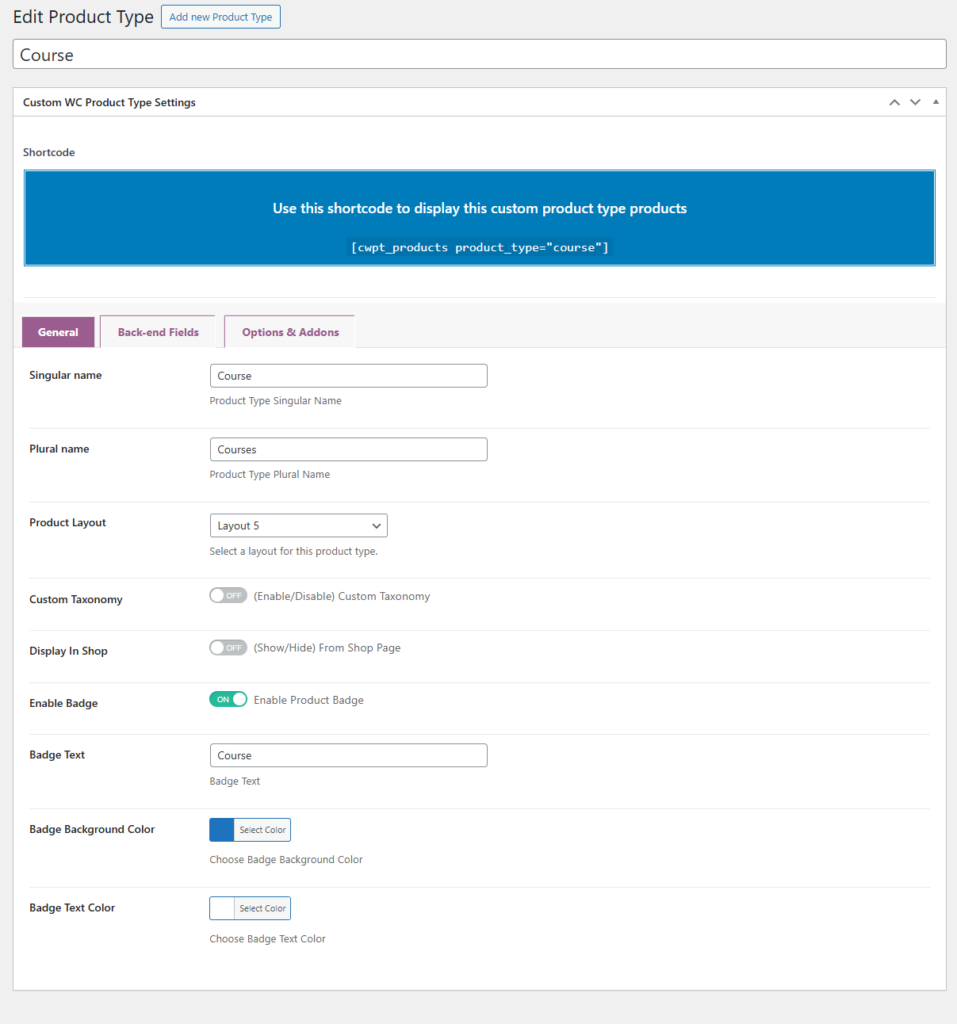
Step 1: Change Display In Shop
- Go to WooCommerce > Product Types.
- Open the Consultation or Service type.
- Find Display In Shop in the General settings.
- Disable it.
- Save the product type.
Custom Product Type for WooCommerce uses this type-level setting to control whether products of the type join the main shop query.
What the setting changes
The plugin stores the type’s shop-visibility choice and excludes that type from the main shop query when Display In Shop is disabled. It does not delete products, change their product type, or remove their direct product pages.
This gives the store two independent decisions:
| Decision | Control |
|---|---|
| Should the type appear in the general shop? | Display In Shop |
| Where should customers browse the type? | Dedicated page, navigation, and internal links |
Step 2: Create the alternative discovery path
Do not hide products without giving customers another route. Build a Services page, add it to navigation, link it from relevant content, and include direct links from the product page or homepage where appropriate.
A focused collection can use:
[cwpt_products product_type="consultation"]Replace consultation with the actual product-type slug.
Build a focused Services page
A useful page should explain the service family without delaying access to the products. Use this structure:
- A direct heading such as WooCommerce Consultation Services.
- A short statement describing who the services help.
- One decision link when customers need help choosing.
- The custom product type collection.
- Links to relevant service guides and FAQs.
The collection page should become stronger than the shop listing it replaces, not simply a hidden page containing a shortcode.
Protect internal discovery
After disabling Display In Shop, connect the dedicated page from:
- The main or services navigation.
- The Custom Product Type product landing page where relevant.
- Service and booking comparison articles.
- Related use-case tutorials.
- Contextual links from individual services.
This prevents the products from depending only on direct URLs or search engines for discovery.
Keep the SEO architecture intentional
Removing products from the main shop does not make the dedicated page useful automatically. Give the collection a distinct search purpose, descriptive introduction, clear product links, and supporting internal links. Avoid creating several collection pages that target the same product family with nearly identical copy.
Use the dedicated page as the main internal destination for the type. Link individual products when the surrounding article discusses a specific offer, and link the collection when the reader is choosing between several products.
Step 3: Verify the customer journey
- Confirm the type no longer appears in the main shop.
- Confirm the dedicated collection displays products.
- Check navigation and internal links.
- Open individual product pages.
- Review mobile discovery.
Run a before-and-after catalog test
| Test | Expected result |
|---|---|
| Main shop | The hidden type no longer appears |
| Dedicated collection | The intended products appear |
| Direct product URL | The product page remains available |
| Navigation | Customers can reach the collection quickly |
| Mobile | The collection and product cards remain usable |
Also test after adding a new product to confirm the type-level visibility behavior remains consistent.
When to keep Display In Shop enabled
Keep the type visible when the main shop is the primary catalog, customers expect to browse all offers together, or the specialized collection does not yet have a strong discovery path.
How to reverse the change
Open the product type, enable Display In Shop, save, and recheck the shop. Keep the dedicated collection when it still supports a useful focused journey; the two paths can coexist.
Continue with the separate-page guide to build the replacement collection.
After hiding the type from the main shop, build a reachable destination with the separate-page guide and verify the collection syntax in the shortcode guide.
Frequently asked questions
Does hiding the type delete its products?
No. Display In Shop controls main-shop visibility; the products and direct pages remain available.
What should replace the shop listing?
Use a dedicated collection page, navigation link, and relevant internal links.
Can I show the type again?
Yes. Re-enable Display In Shop and retest the main catalog.

![Best WooCommerce Product Feed Plugins to Sell on Multiple Marketplaces [2026] | WPSAAD](https://wpsaad.com/wp-content/uploads/2026/08/Product-feed-plugin-guest-post-300x300.webp "Best WooCommerce Product Feed Plugins to Sell on Multiple Marketplaces [2026] | WPSAAD")