This guide will show you how to build a professional digital services website using the Custom Product Type for WooCommerce plugin. The setup uses only one admin tab, while optional fields can be shown on the frontend with options and addons fields for customers . This mirrors real-world commercial sites and ensures efficient internal management and a clear customer experience.
Step 1: Create the Product Type
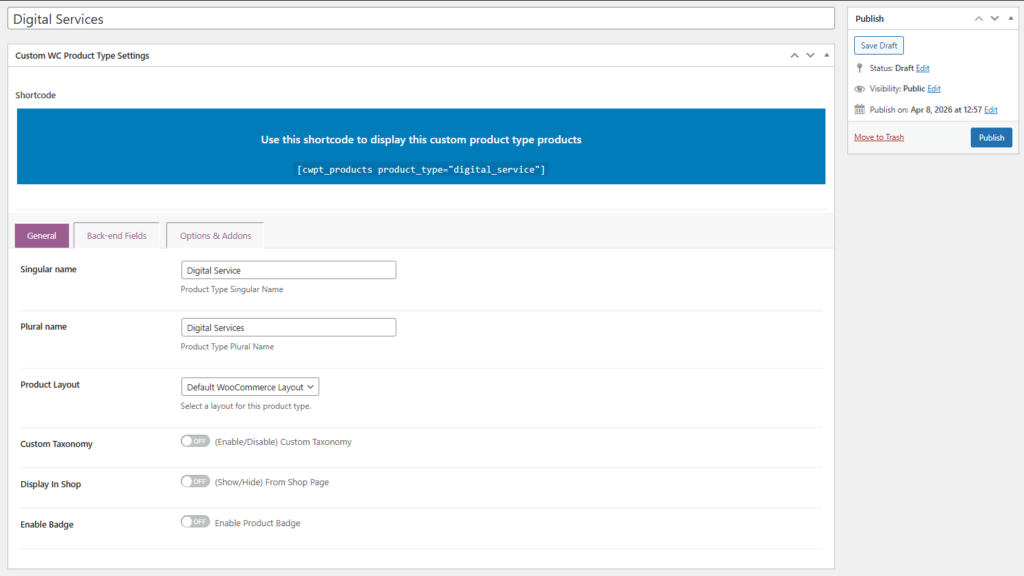
Go to WooCommerce → Product Types → Add New.
Name the product type Digital Services for easy identification in the admin.
Add Singular/Plural names
Choose a layout template that clearly presents services to buyers or leave default WooCommerce template.
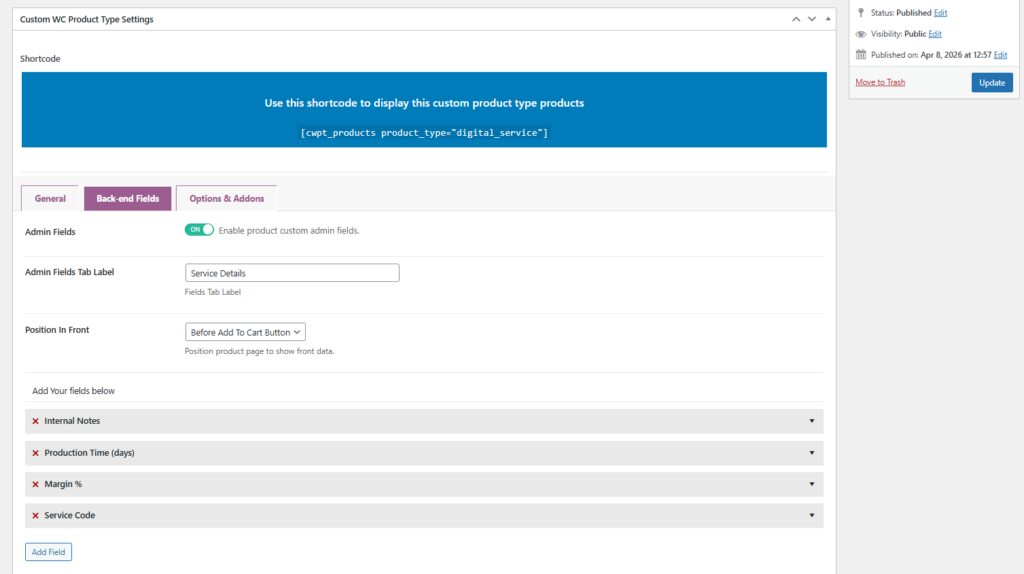
The plugin allows a admin tab per product type, where you can add fields for internal management. Some of these fields can optionally be displayed on the product page if “Show in Frontend” is enabled.
You can enable going to Back-end Fields tab then enable Admin Fields options
Field
Type
Purpose
Example Value
Show Frontend?
Internal Notes
Textarea
Instructions for staff
“Verify bleed and margins”
No
Production Time (days)
Number
Estimated processing time
3
Optional
Margin %
Number
Profit margin for internal calculation
30%
No
Service Code
Text
Unique internal reference
“DS-PR-001”
No
Tip: Keep all fields in one tab named Service Details. Fields marked optional can appear on the product page to help buyers understand service specifics.
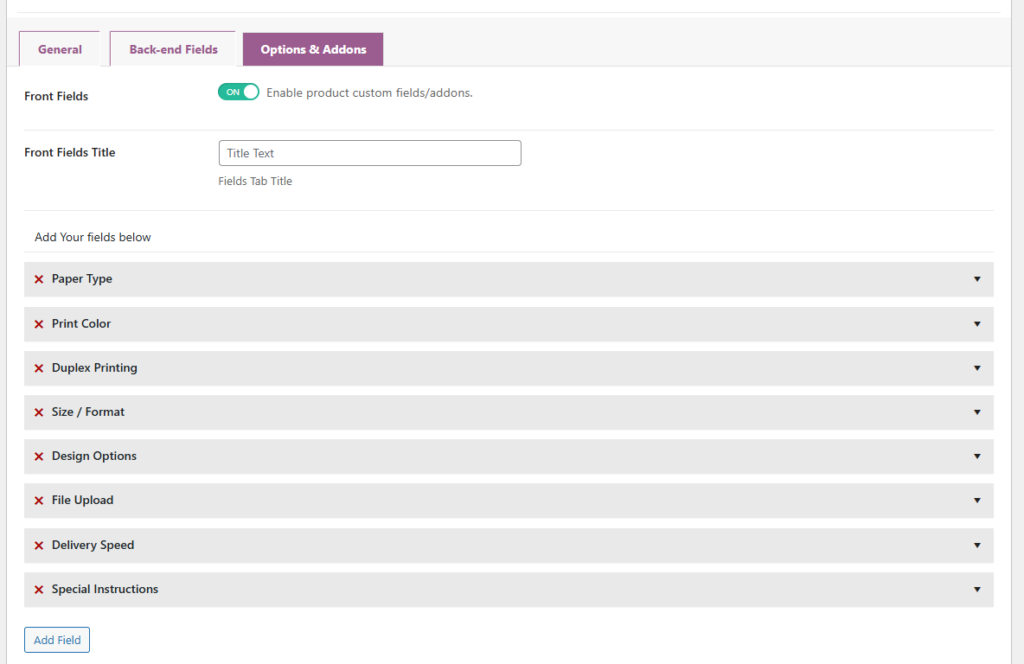
These are fields that buyers interact with, configured within the admin tab by checking “Show in Frontend”. All fields here are not included in default WooCommerce.
Field
Type
Purpose
Example Value
Notes
Paper Type
Select
Material selection
Glossy, Matte, Cardstock, Recycled
Dropdown for clear options
Print Color
Select
Color mode
Full Color, Black & White
Optional extra pricing possible
Duplex Printing
Radio
Double-sided printing
Yes / No
Optional extra charge
Size / Format
Select
Product size
A4, A3, Custom
Optional pricing logic
Design Options
Select
Add-on design service
Standard Layout, Premium Layout, Custom Design
Useful for services with customization
File Upload
File
Upload files
PDF, PSD, DOCX
Optional, conditional by product
Delivery Speed
Select
Choose turnaround time
Standard 5–7 days, Express 2–3 days, Priority 24 hrs
Optional surcharge
Special Instructions
Textarea
Additional notes
“Include logo on first page”
Optional
Step 4: Organize the Admin Tab
Admin Tab: Service Details → All backend fields (Cost, Supplier, Internal Notes, Margin, Production Time, Minimum Quantity, SKU)
Optional Frontend Display: Quantity, Paper Type, Print Color, Duplex Printing, Size, Design Options, File Upload, Delivery Speed, Special Instructions
Step 5: Add Your Digital Service Product
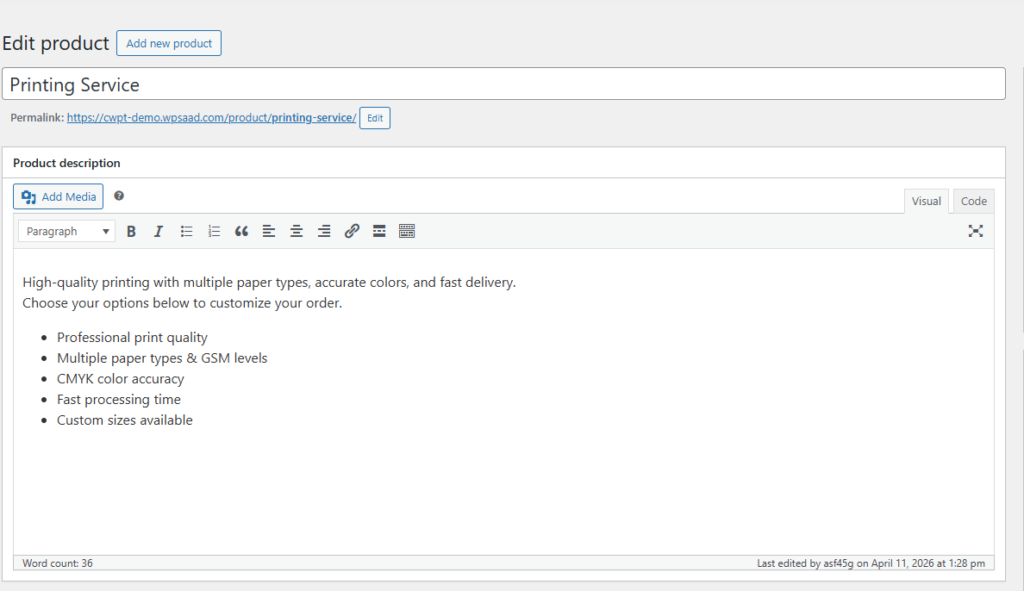
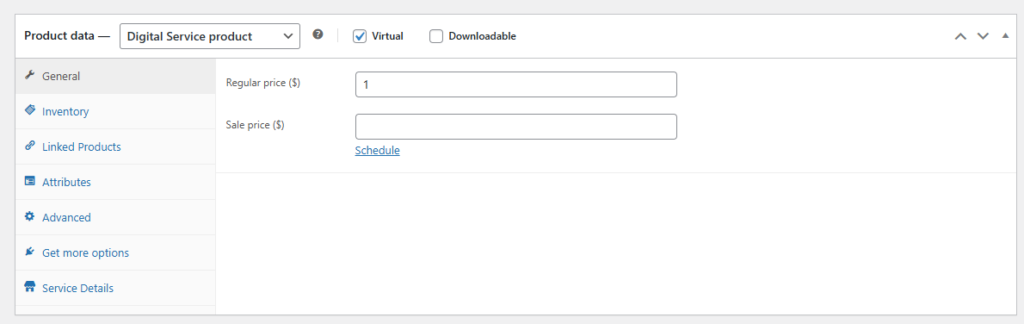
Add your digital service product in WooCommerce product.
Assign product as virtual.
Assign the created product type and fill in data
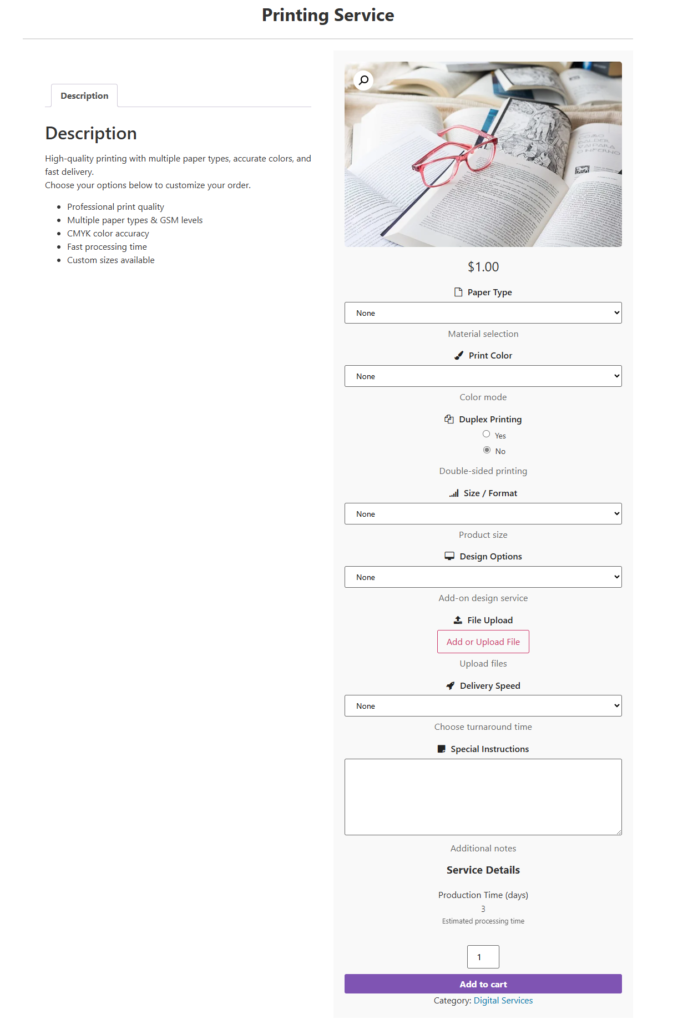
Step 6: Final Product Output & Layout
Once the product type is saved and frontend fields enabled:
Buyers see only the fields marked Show in Frontend.
Admins retain full visibility of all backend fields.
Customers Addons and options added.
Layout templates make the product easy to scan and select: single-column for complex services, grid for multiple offerings.
Special Instructions: “Include logo on first page”
Step 6: Import & Export Your Product Type (Planned Feature)
The plugin supports import/export of product types, allowing you to transfer all backend fields, optional frontend fields, and settings between sites.
Note: The official plugin documentation is not fully updated yet.
To make it even easier, I am planning to provide a one-click import link in this blog. When available, you will be able to import the entire Digital Services product type with all fields and settings in seconds.
In the blog, this will appear as a clear import button, so you can set up your product type instantly without manual configuration.



![Best WooCommerce Product Feed Plugins to Sell on Multiple Marketplaces [2026] | WPSAAD](https://wpsaad.com/wp-content/uploads/2026/08/Product-feed-plugin-guest-post-300x300.webp "Best WooCommerce Product Feed Plugins to Sell on Multiple Marketplaces [2026] | WPSAAD")