


Building an online courses website no longer requires complex LMS plugins or heavy page builders. With the Custom Product Type for WooCommerce plugin, you can create clean, fast, and scalable course pages using a structured product type and a single admin tab that controls both backend management fields and optional frontend fields for students.
This guide will help you set up a complete Online Courses system in minutes—optimized for UX, internal workflow, and sales conversions.
Step 1: Create the Online Courses Product Type
- Go to WooCommerce → Product Types → Add New
- Name the new type: Online Courses
- Add the singular and plural labels
- Select a layout template (or use the default WooCommerce layout)
- Click Publish
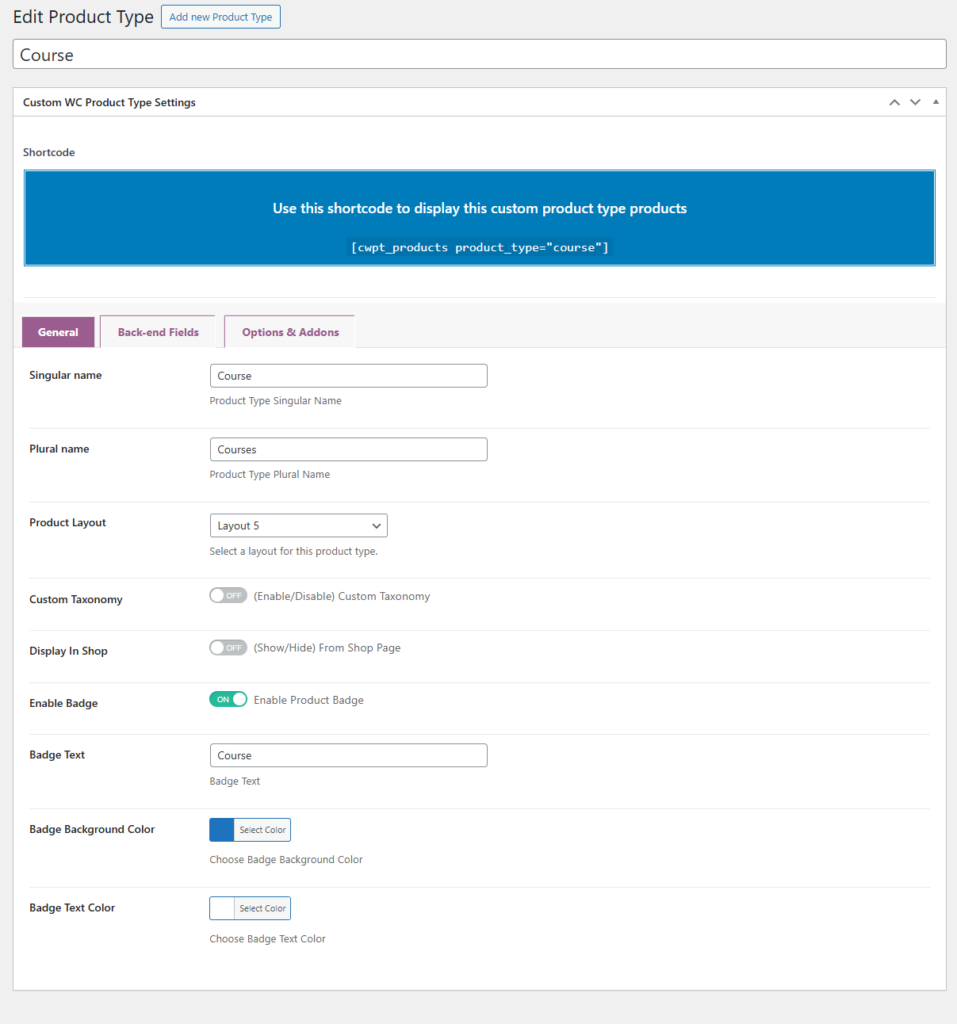
This creates a dedicated structure for all your courses, keeping your WooCommerce dashboard organized and efficient.
Step 2: Add Backend Fields (Admin-Only Controls)
The plugin uses one admin tab per product type, making everything neatly centralized.
Go to:
Back-end Fields → Enable Admin Fields
Below is an optimized set of internal course management fields:
| Field | Type | Purpose | Example | Frontend |
|---|---|---|---|---|
| Course Duration | Number | Total hours | 30 hours | Optional |
| Instructor | Text | Instructor Name | “Mohamed saad” | Yes |
| Availability | Checkbox | Course Availability | yes/no | No |
| Access Period | Number | Days student can access | 90 | Optional |
| Materials Access | Select | PDF files / Video lessons | PDF files / Video lessons | Yes |
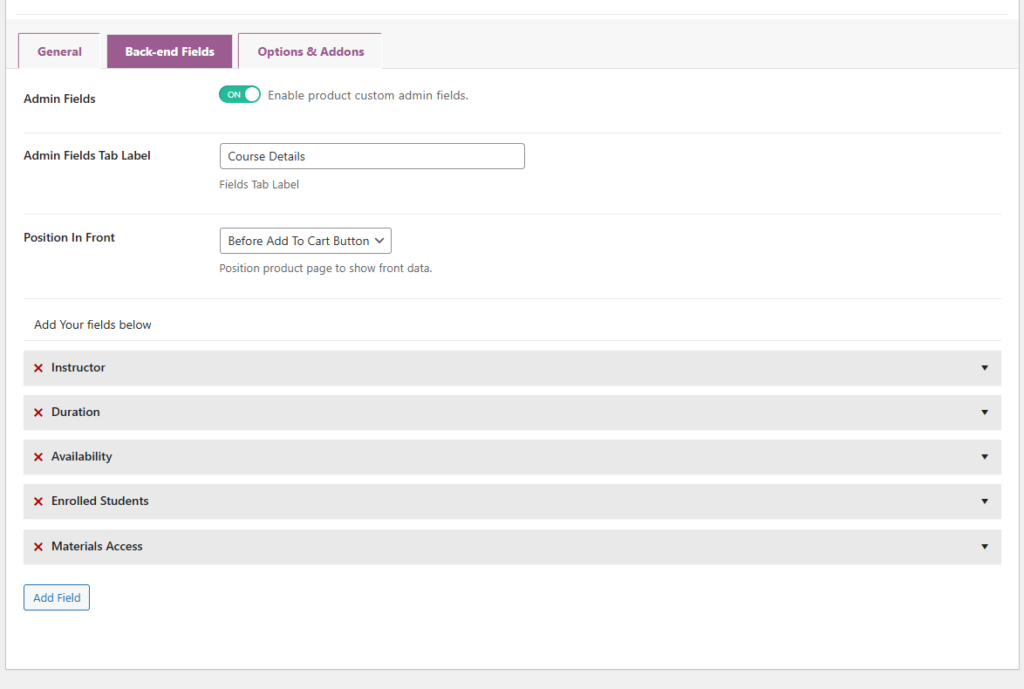
💡 Tip: Keep all backend fields inside one tab named Course Details for simplicity and easy navigation.
Step 3: Add Frontend Fields (Student Options & Inputs)
You can show any field to customers by enabling:
Show in Frontend
These fields enhance the buying and learning experience:
| Field | Type | Purpose | Example | Notes |
|---|---|---|---|---|
| Course Level | Select | Difficulty indication | Beginner / Intermediate / Advanced | Improves conversion clarity |
| Course Start Date | Booking Calendar | Scheduled start | 1 May | For fixed-date courses |
| Learning Mode | radio | Format | Self-paced / Live | Crucial for user decision |
| Additional Notes | Textarea | Student instructions | “Require English subtitles” |
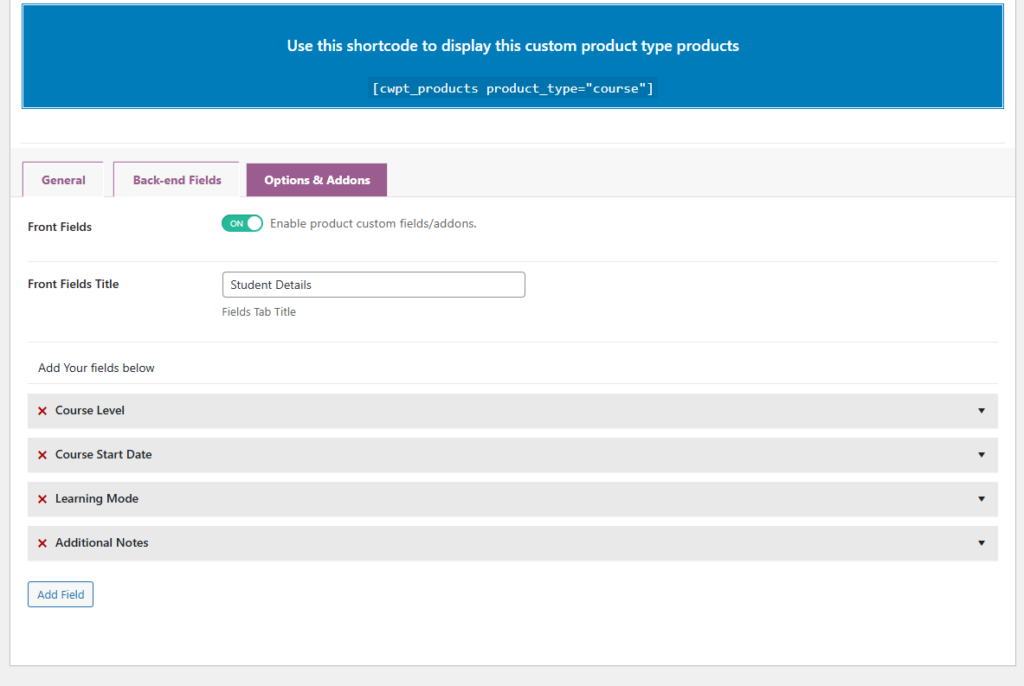
These fields help buyers understand the course more clearly, boosting trust and checkout completion rate.
Step 4: Organize Backend and Frontend Fields
Backend-Only Fields (Hidden from Students)
- Course Code
- Instructor Notes
- Margin
- Internal Management Data
Frontend Fields (Visible to Students)
- Course Level
- Start Date
- Learning Mode
- Access Type
- Materials Access
This separation gives admins full control without overwhelming the customer with technical details.
Step 5: Add the Course Product
- Go to Products → Add New
- Enter the course title and description
- Mark the product as Virtual
- Choose product type: Course
- Fill in all backend and frontend fields
- Publish the course
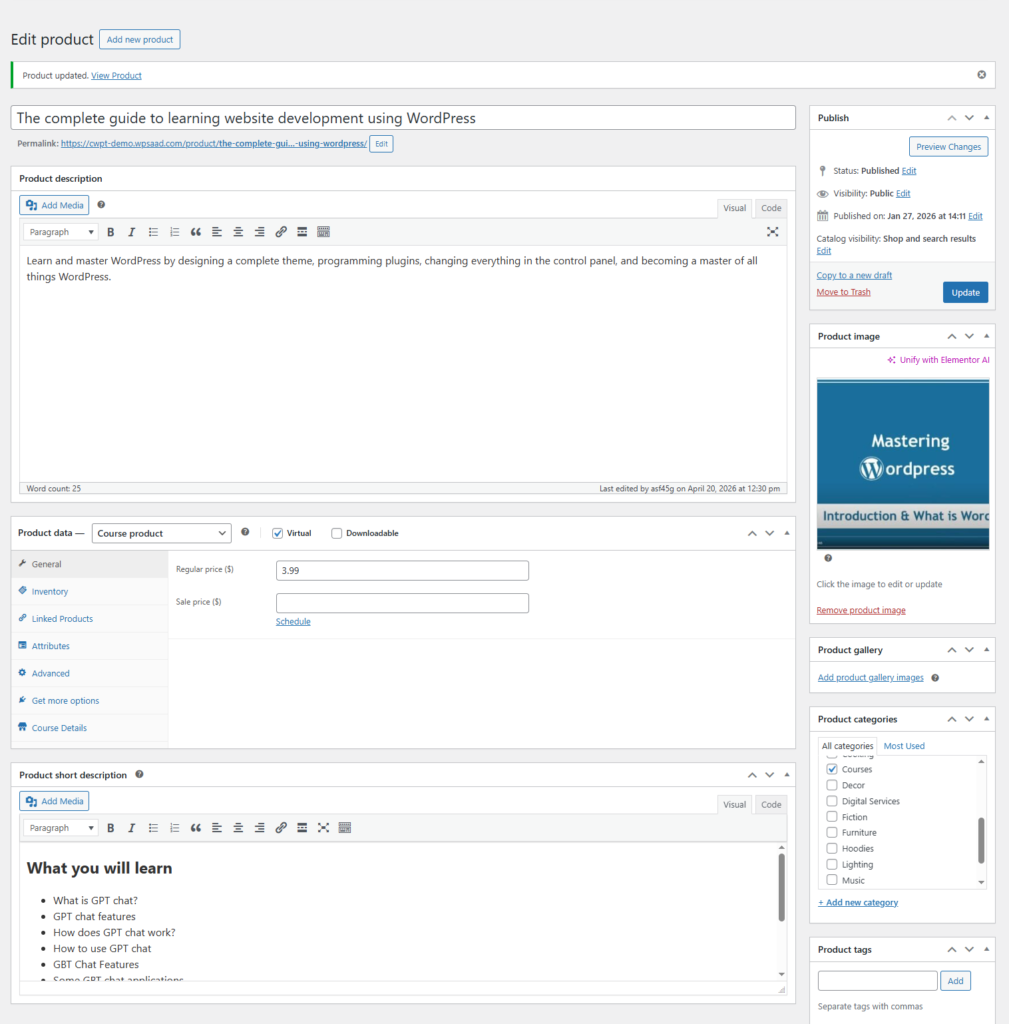
Your course page is now fully generated with optimized structure and clean UI.
Step 6: Final Course Page Output
Admin View (Backend)
- Course Code: OC-BGN-001
- Duration: 30 hours
- Access: 90 days
- Margin: 40%
- Internal Notes: “Replace week 4 PDF”
Student View (Frontend)
- Level: Beginner
- Learning Mode: Self-paced
- Start Date: May 1
- Access Type: Lifetime Access
- Included Materials: PDF files
- Homework Upload Field
Everything the buyer sees is clean, intuitive, and optimized for learning.
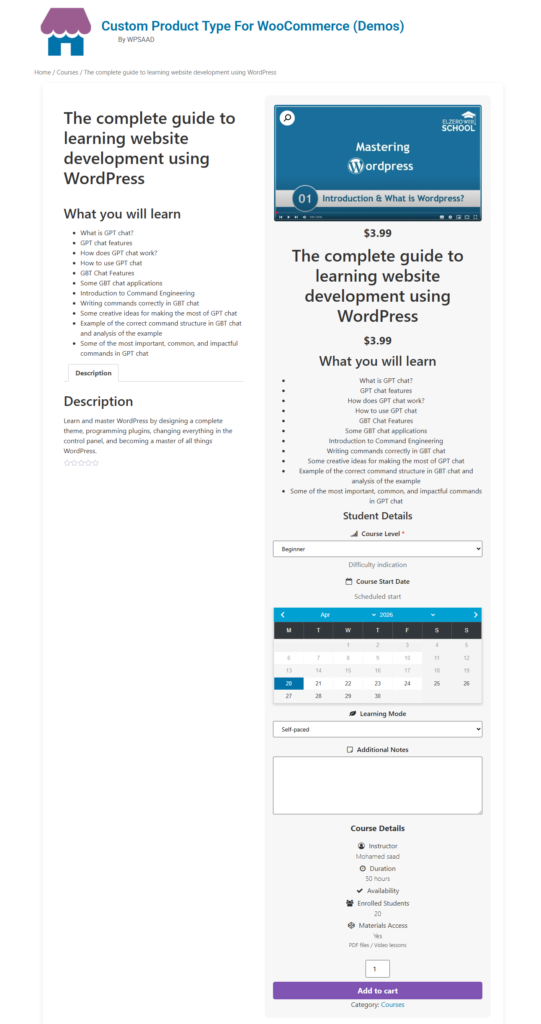
Optimizing Layout for Best Conversions
Choose a layout that fits your course style:
Single Column Layout
Best for:
- Deep courses
- Lots of student fields
- Detailed descriptions
Grid Layout
Best for:
- Multiple courses
- Quick browsing
- Comparison-friendly pages
Cleaner layouts = better engagement and higher sales.
Why This Setup Works Perfectly
- Lightweight and faster than LMS plugins
- Clean structure inside WooCommerce
- One admin tab = easier management
- Optional frontend fields = customized student experience
- SEO-friendly and mobile-optimized
- Fully reusable for unlimited courses
This system is ideal for creators, instructors, academies, and agencies.
Quick Publish Checklist
✔ Backend fields filled correctly
✔ Frontend fields previewed on mobile and desktop
✔ Pricing and access settings reviewed
✔ Layout matches the course type
✔ Optional fields do not overwhelm the student
Future Feature: One-Click Import
The plugin will support import/export for:
- Product type
- All fields
- All options
- Layout settings
A one-click import button will soon be available so you can set up the full Online Courses product type instantly.
![Best WooCommerce Product Feed Plugins to Sell on Multiple Marketplaces [2026] | WPSAAD](https://wpsaad.com/wp-content/uploads/2026/08/Product-feed-plugin-guest-post-300x300.webp "Best WooCommerce Product Feed Plugins to Sell on Multiple Marketplaces [2026] | WPSAAD")